Programmatic Markers
Programmatic markers give you the ability to automatically create marked areas in the web dashboard every time you upload a session, by programmatically logging lines from inside your app.
Marked areas can be used to highlight and compare specific parts of your game or app (e.g. menus, levels, areas requiring high use of resources) across builds or different devices. Programmatic markers make this comparison very easy by accurately highlighting these important areas from within your code and making it possible to start comparing as soon as your session is uploaded to your web dashboard (see Comparing Marked Areas).
Enabling programmatic markers
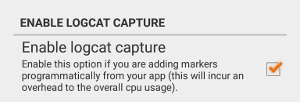
Programmatic markers are enabled by default when using the GameBench desktop app. For the GameBench Android app, go to Settings and enable the option as shown below.
Usage
To add a marker programmatically, log a line from your app with the log message in the following format:
command - labelThat is, a command (either to start or stop a marked area) followed by a hyphen (-) and then the label for that marker.
| Command | Description |
|---|---|
gb_marker_start |
Start a marked area |
gb_marker_stop |
Stop a marked area |
For example, in Android your log line to start a marker should look like this:
01-22 10:12:00.116 3093 3093 I YOUR_TAG: gb_marker_start - Boss fightAnd to stop that marker:
01-22 10:16:00.985 3093 3093 I YOUR_TAG: gb_marker_stop - Boss fightThe above example would create a marked area in your web dashboard named “Boss fight”, starting at the point in time during your session that the gb_marker_start line was printed in the device logs and ending 4 minutes later when the gb_marker_stop command was logged.
Here are a couple of examples of how your code to print these logs could look:
// C#
Debug.Log("gb_marker_start - " + label);
// ...
Debug.Log("gb_marker_stop - " + label);
// Kotlin
val YOUR_APPS_TAG = "SOME_TAG"
val MARKER_START_TAG = "gb_marker_start"
val MARKER_STOP_TAG = "gb_marker_stop"
// ...
Log.i(YOUR_APPS_TAG, "$MARKER_START_TAG - Boss fight")
// ...
Log.i(YOUR_APPS_TAG, "$MARKER_STOP_TAG - Boss fight")Once your session is uploaded on your web dashboard you will be able to see the marked areas in the Markers pane and start comparing with other sessions containing markers with the same label.
Marker groups
Add -group=<your group name> to the end of the line to assign a marker to a group. For example:
Debug.Log("gb_marker_start - gameplay level 1 - group=gameplay");
// ...
Debug.Log("gb_marker_stop - gameplay level 1 - group=gameplay");
Marker groups can be used in session analysis to analyse multiple markers across sessions. For example, if you wished to look at all gameplay markers at once.
Naming your markers
The same label can be used multiple times in a single session. When the session is uploaded, GameBench will automatically append a counter to the end of each duplicate label. For example, if you were to assign the label “Gameplay” to two programmatic markers in a single session, what you would see in the Markers pane of the web dashboard would be two marked areas named:
Gameplay 1Gameplay 2
Recording loading times
You can use programmatic markers to record loading times. Start recording a marker called “Loading” when your game launches, and stop it once the UI is available to the user. Ensure that you’re launching your game “fresh” on the device either through the Android App, or after you’ve hit the Record button on the Desktop App, as log lines prior to the start of the recording time are not captured.
Available for all iOS versions and Android 5 and above.