Sessions
The Sessions page provides a searchable, filterable list of all test sessions in your active collection. Access it from the Sessions link in the main navigation bar.
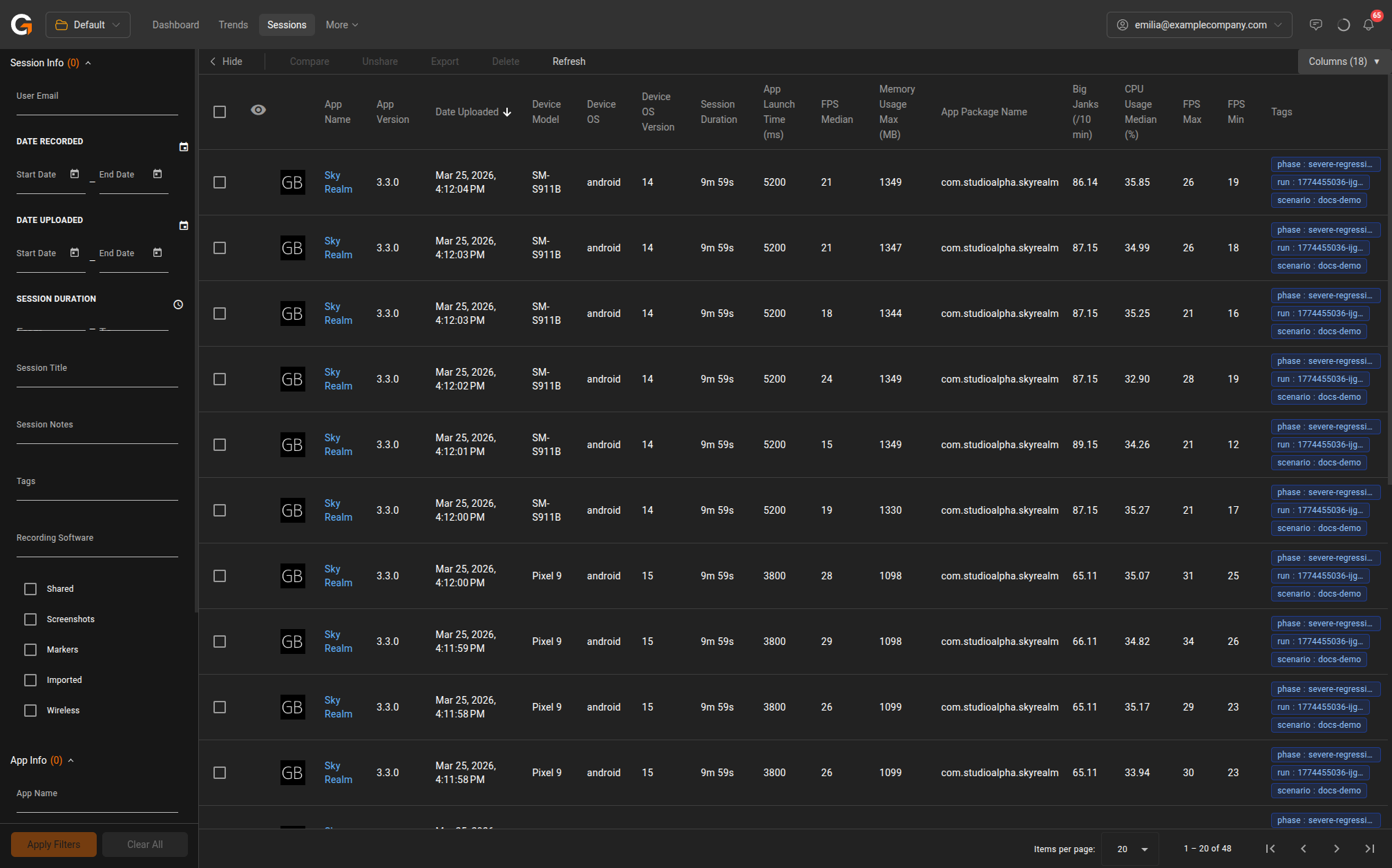
Filtering Sessions
The left sidebar contains advanced search filters organised into three groups:
Session Info
- User Email – Filter by the email of the user who recorded the session.
- Date Recorded – Filter by when the session was recorded, with date range pickers and presets.
- Date Uploaded – Filter by when the session was uploaded to the dashboard.
- Session Duration – Filter by session length (e.g., “1h 30m” or minutes).
- Session Title – Search by session title text.
- Session Notes – Search within session notes.
- Tags – Filter by tags applied to sessions.
- Recording Software – Filter by the tool used to record (e.g., Desktop, SDK, Injector).
- Checkboxes – Toggle filters for Shared, Screenshots, Markers, Imported, and Wireless sessions.
App Info
- App Name – Filter by application name.
- App Package Name – Filter by package identifier.
- App Version – Filter by version (enabled after selecting an app).
Device Info
- Device Manufacturer – Filter by manufacturer.
- Device Model – Filter by device model.
Click Apply Filters to update the results, or Clear All to reset.
Sessions Table
The main area displays a sortable data table with configurable columns. Default columns include:
| Column | Description |
|---|---|
| App Name | The application tested |
| App Version | The build version |
| Date Uploaded | When the session was uploaded |
| Device Model | The device used |
| Device OS | Android or iOS |
| Device OS Version | The OS version number |
| Session Duration | Length of the test session |
| App Launch Time (ms) | Time to launch the app |
| FPS Median | Median frames per second |
| Memory Usage Max (MB) | Peak memory consumption |
Click any column header to sort. Use the Columns button to show or hide columns.
Bulk Actions
Select one or more sessions using the checkboxes to enable bulk actions:
- Hide – Hide selected sessions from the list.
- Compare – Open a side-by-side comparison of selected sessions.
- Unshare – Remove sharing from selected sessions.
- Export – Export session data.
- Delete – Permanently delete selected sessions.
Pagination
Use the controls at the bottom of the table to adjust items per page (default: 20) and navigate between pages.
Viewing Session Details
Click on any session row to open the session detail view, where you can explore performance metrics in depth.