Dashboard Home
The Dashboard Home page is the first screen you see after logging in. It provides an overview of your collection and quick access to GameBench tools.
Get Started
The top section highlights the available GameBench performance testing tools:
- GameBench Performance Injector – Seamless performance profiling with zero developer effort. A post-build injection tool that adds monitoring to apps without code changes.
- Studio Pro Desktop – Manual performance testing with comprehensive data collection for iOS and Android.
- Studio SDK – Integrate the SDK for real-time performance monitoring across all stages of app development, including CI/CD pipelines.
Each tool card provides a Download button and a link to its documentation.
Collection Summary
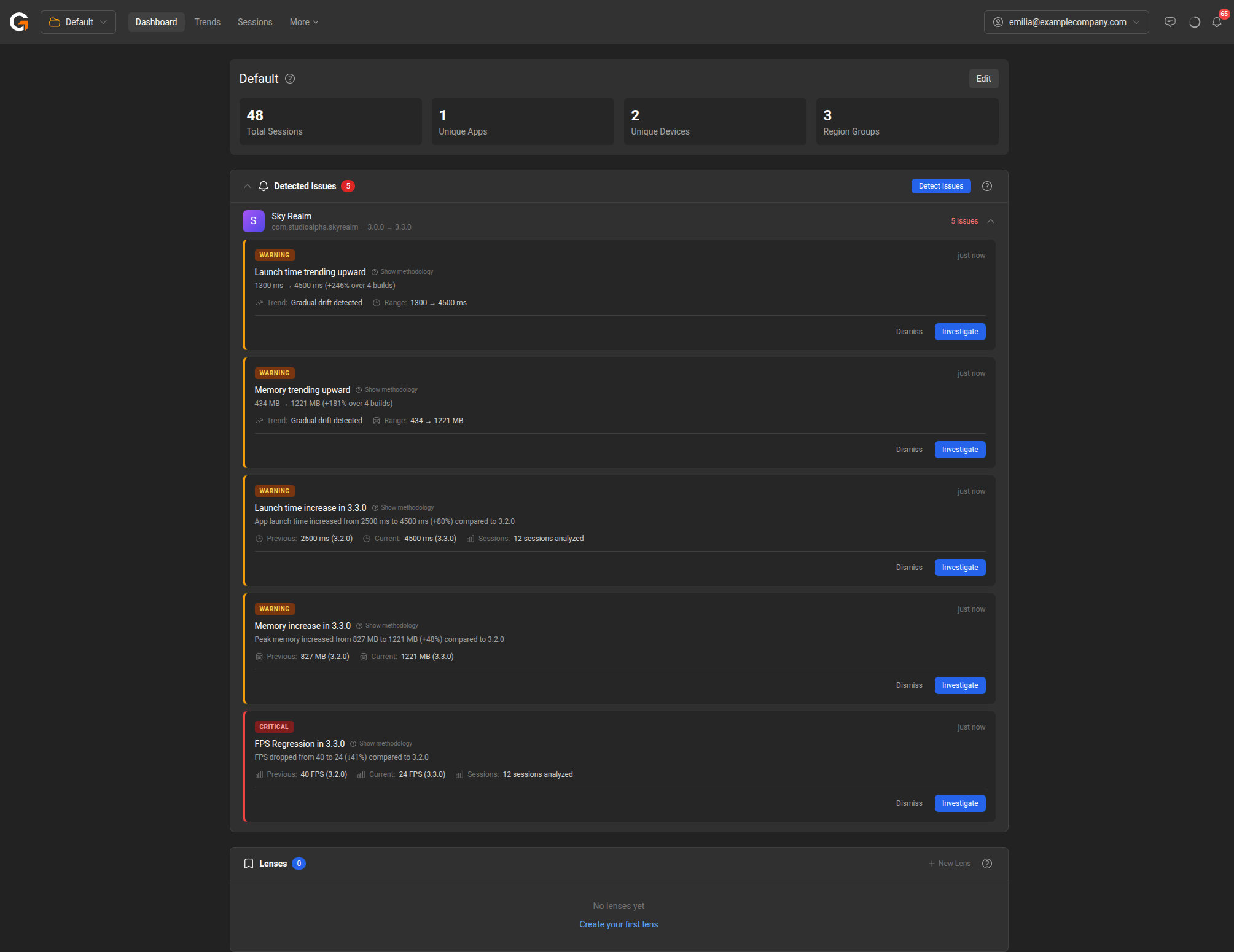
Below the Get Started section, you’ll see a summary card for your active collection. This shows:
- Total Sessions – The number of test sessions in the collection.
- Unique Apps – The number of distinct applications tested.
- Unique Devices – The number of distinct device models used.
- Region Groups – The number of region groups configured.
Click Edit to manage the collection’s settings, users, and permissions.
Detected Issues
The Detected Issues section surfaces performance problems found across your sessions. Issues are grouped by app and categorised as Warning or Critical. Examples include FPS regressions between builds, memory trending upward, and launch time increases.
Click Detect Issues to run analysis. For each issue, you can:
- Investigate – Opens the Trends Explorer with the relevant app and metric pre-selected, so you can drill into the data.
- Dismiss – Remove the issue from the list.
Lenses
Lenses allow you to save and revisit specific Trends Explorer configurations — including the selected app, filters, and quality targets. Saved lenses also drive issue detection: GameBench monitors your lenses and surfaces detected issues on this page when performance degrades against your defined targets.
Click New Lens to create one, or save a lens directly from the Trends Explorer.