User Management
Company administrators can manage users, invite new team members, and control permissions from the My Company > Users tab.
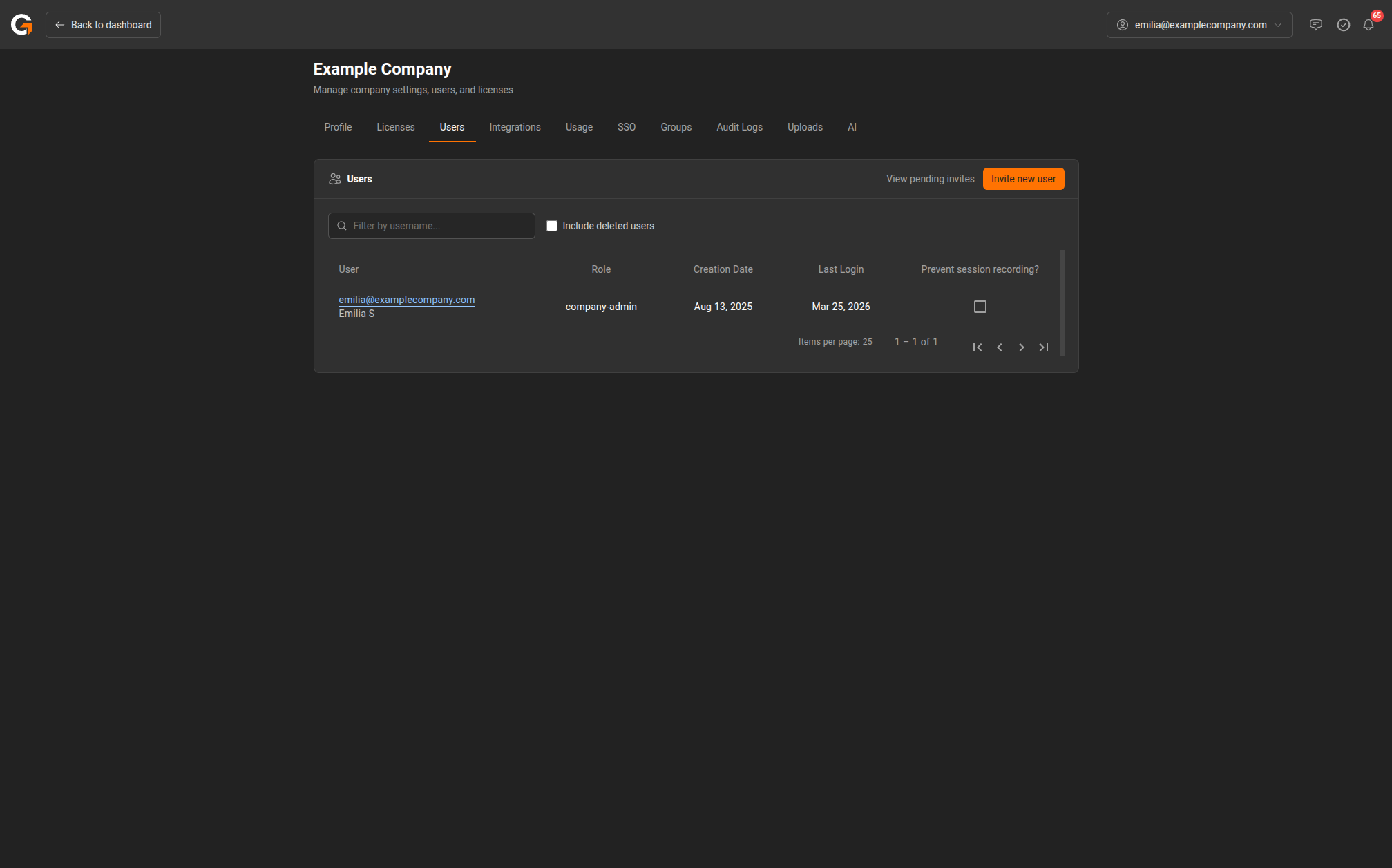
User List
The Users page displays all users in your company with the following details:
| Column | Description |
|---|---|
| User | Email address and display name |
| Role | The user’s company-level role |
| Creation Date | When the account was created |
| Last Login | Most recent login date |
| Prevent session recording? | Toggle to prevent this user from recording sessions |
Use the search box to filter users by username. Check Include deleted users to show deactivated accounts.
Inviting a New User
Click Invite new user to open the invitation form.
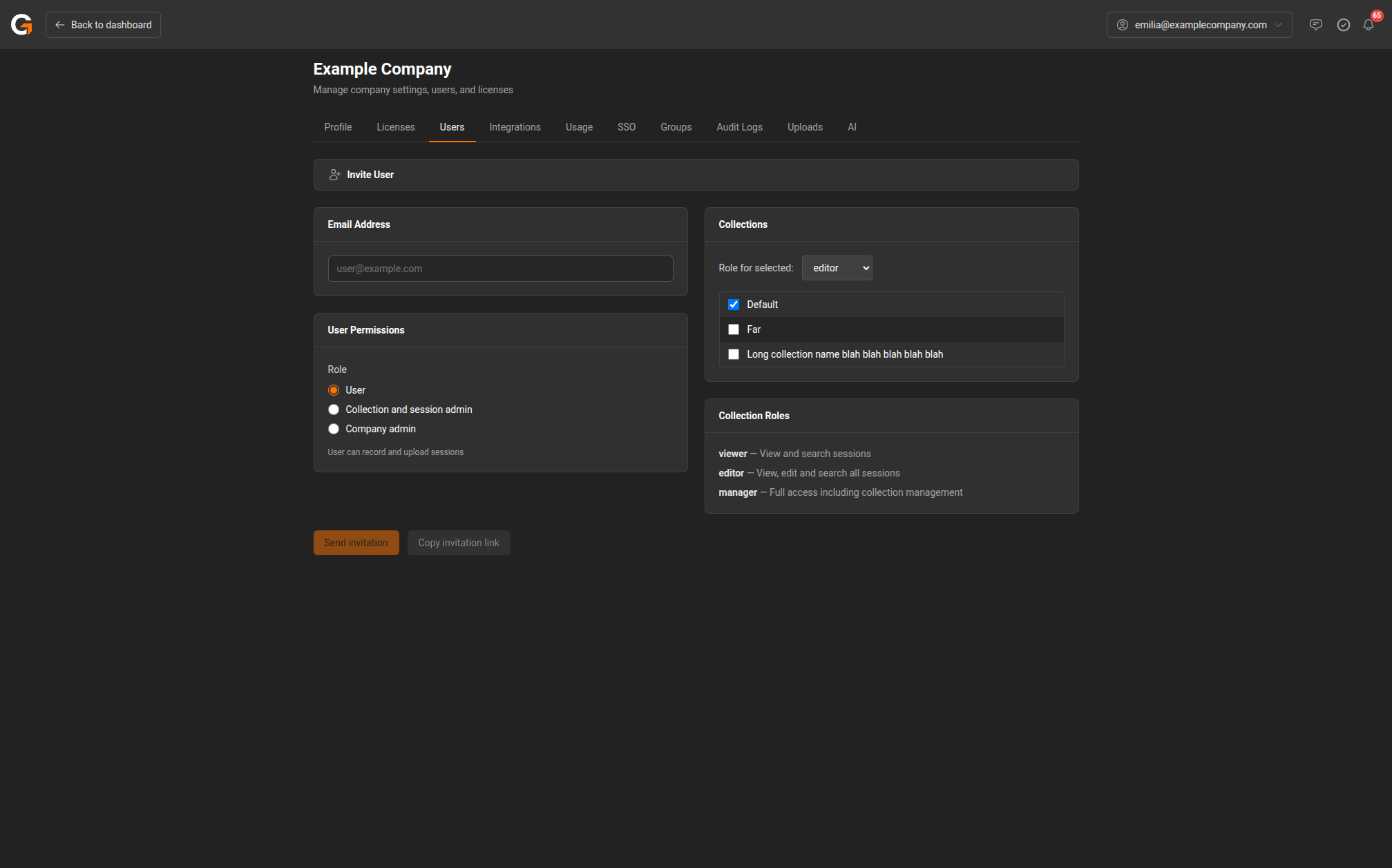
1. Email Address
Enter the email address of the person you want to invite.
2. User Permissions
Select a company-level role:
| Role | Description |
|---|---|
| User | Can record and upload sessions |
| Collection and session admin | Can manage collections and sessions |
| Company admin | Full access to company settings, users, and licenses |
3. Collections
Choose which collections the user should have access to, and set their role within each collection:
| Collection Role | Description |
|---|---|
| viewer | View and search sessions |
| editor | View, edit, and search all sessions |
| manager | Full access including collection management |
Use the Role for selected dropdown to set the role for all checked collections at once.
4. Send the Invitation
Click Send invitation to email the invite, or Copy invitation link to share the link manually.
Pending Invites
Click View pending invites on the Users page to see invitations that haven’t been accepted yet. You can resend or revoke pending invites from this page.