Analysis
The Analysis page lets you build custom performance reports across your sessions. Access it from More > Analysis in the main navigation bar.
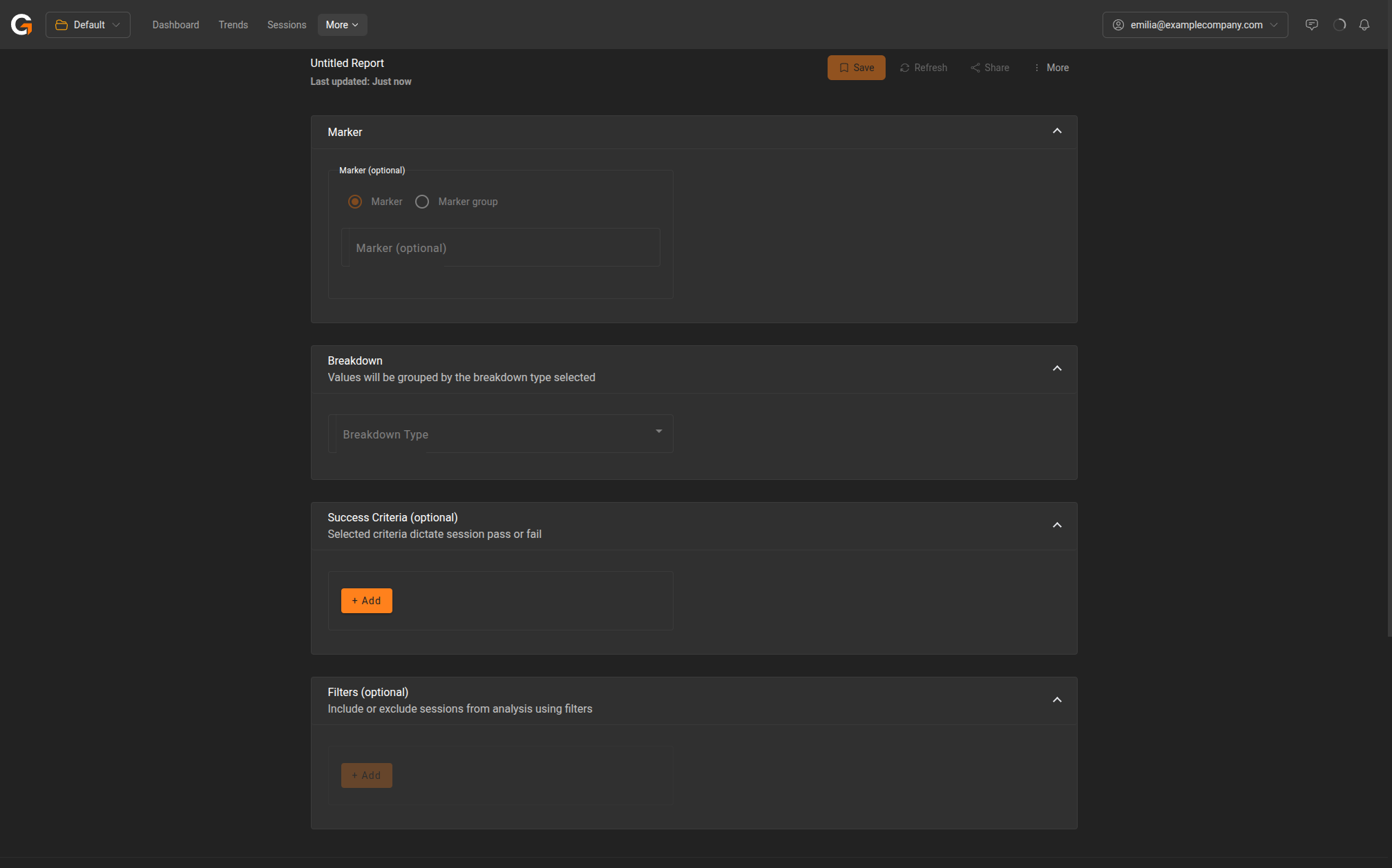
Creating a Report
Each report starts as an Untitled Report and can be configured using the sections below. Once configured, click Save to name and store the report for future reference.
Marker
Optionally scope your analysis to a specific marker or marker group. This lets you focus on a particular section of your sessions (e.g., a loading screen or a specific gameplay segment).
- Marker – Select a specific named marker.
- Marker group – Select a group of related markers.
Breakdown
Choose how to group your results. The Breakdown Type determines the axis along which session data is segmented – for example, by app version, device model, or device OS.
Success Criteria
Define pass/fail thresholds for your sessions. Click + Add to add criteria. For example, you might set:
- FPS Median must be above 30
- Memory Usage Max must be below 500 MB
Sessions meeting all criteria are marked as passing; those that don’t are flagged as failing.
Filters
Optionally include or exclude sessions from the analysis. Click + Add to create filter rules. Filters can target session properties like app name, device model, date range, and more.
Report Actions
- Save – Save the report with a name for future access.
- Refresh – Re-run the analysis with the current configuration.
- Share – Share the report with other users in your company.
- More – Additional options for managing the report.